



Last updated March 2026
Purpose: This article explains how professors can add another attempt on a quiz or exam in Canvas. You may want to add an extra attempt if the student is given a make-up quiz or if they experienced technical difficulties. LMS Support is able to assist, however they will not add attempts without explicit professor approval
Note: Canvas has two quiz engines: Classic Quizzes and New Quizzes.
This guide applies to Classic Quizzes.
For New Quizzes instructions (with screenshots), see: https://tmufacstaff.helpdocsite.com/quizzes/how-do-i-add-another-quiz-attempt-new-quizzes
Steps
1. Navigate to the appropriate quiz through the Quizzes menu:

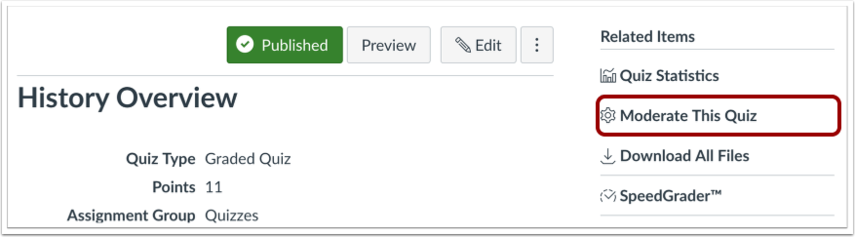
2. On the top right side of the page, click Moderate This Quiz.
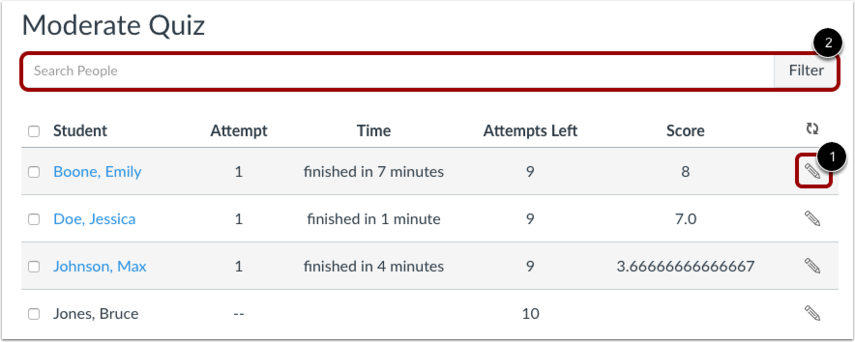
3. Find the student's name, then click the pencil icon on the right.
4. Enter 1 in the Extra Attempts field.

5. If the quiz is locked because of the due date, you need to check the box next to Manually unlock and adjust the due date for the student.
6. Click Save.
If you would like to perform other quiz edits, please see our helpdoc: How do I edit quiz settings within Canvas?
Please reach out to lmssupport@masters.edu if you have any questions.


