



Last updated by Ian Estrella, 1/27/2026
This guide has been created to provide student interns with an overview of IT resources available to you. Each section may be applicable, depending on your workflow. We encourage all interns to bookmark this document for quick reference.
We are available for support Monday thru Friday, 8AM to 5PM at servicedesk@masters.edu.
Please note:
- All student interns should have an intern account, separate from their student account. Credentials to your intern account are emailed to your supervisor.
- Please use your intern account credentials to login to any workstation, resource, or website that pertains to your workflow for the organization. Do not use your student account.
Printing
To use printers on-campus, please confirm that you are:
1. Using a TMU-issued device. Personal devices cannot print to campus printers for work purposes.
2. Connected to TMU-WiFi
If you are using a MacOS device, please contact servicedesk@masters.edu.
If you are using a Windows device, please follow these instructions:
1. Open File Explorer and type \\print16 and press Enter.

2. Search for the printer(s) you want to add.
3. Double click on the printer(s) you want to add
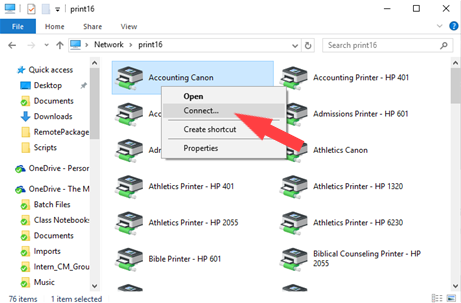
4. You have successfully connected to the printer! You can now select the printer when printing documents for your workflow.
For further guidance, please reference our help document: https://tmufacstaff.helpdocsite.com/printing/adding-a-facstaff-printer-or-copier-on-a-pc
SharePoint
SharePoint serves as a central storage space essential for backing up documents and collaborating with other members of your department. OneDrive is the backbone of SharePoint.
Please note the following:
- You should only access a SharePoint site with your intern account on a TMU-issued device.
Accessing SharePoint via the Web:
1. Navigate to https://www.o365.com/ and sign in with your intern account credentials
2. Click on Apps, then click on SharePoint

3. This takes you to the SharePoint home page. We recommend bookmarking this page for ease of access.
4. Select the desired SharePoint site and click on Documents.

5. This is the web view of all documents within your department's SharePoint site. Any changes made to these documents are immediately visible to other SharePoint members.
Phone
If you had Microsoft Authenticator setup for your intern account and recently obtained a new phone, please reference our help document for guidance: https://tmuservicedesk.helpdocsite.com/mobile/what-should-i-do-when-i-get-a-new-phone


